
VivaVideo - Video Cut & Editor
QuVideo Inc. Video Editor & Video Maker AppVideo Players & Editors
4.3144.24K Reviews
- Version
- 9.37.4
- Installs
- 500.00M
- Age Rating
- Everyone
Screenshots
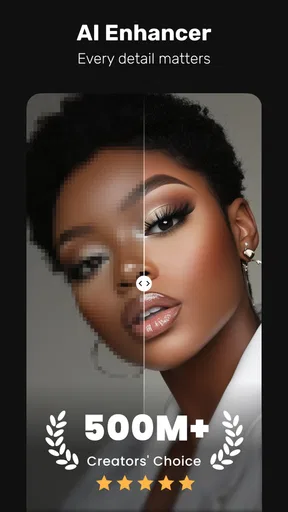
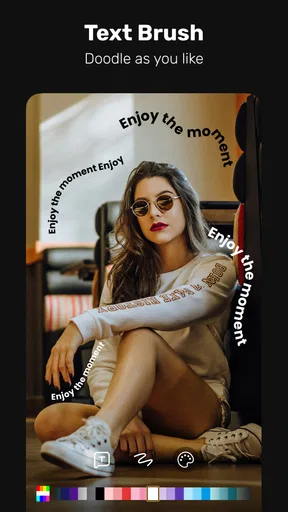
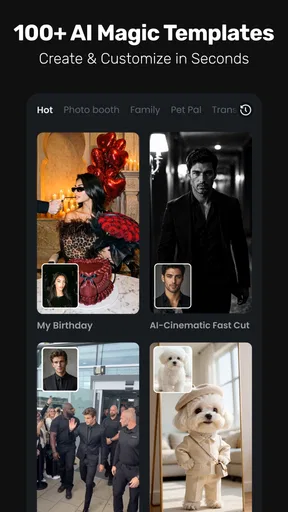
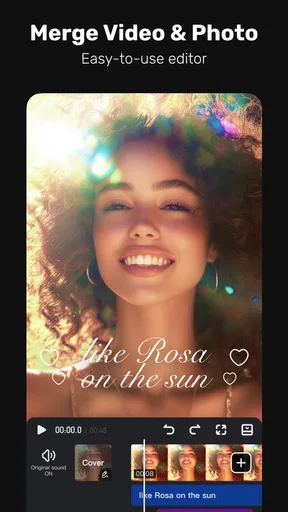
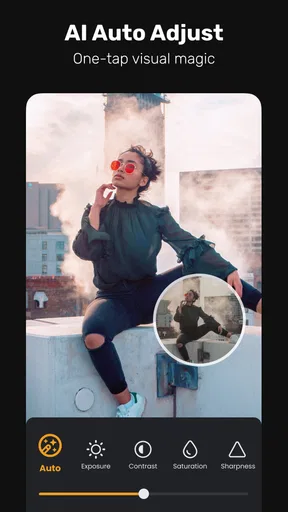
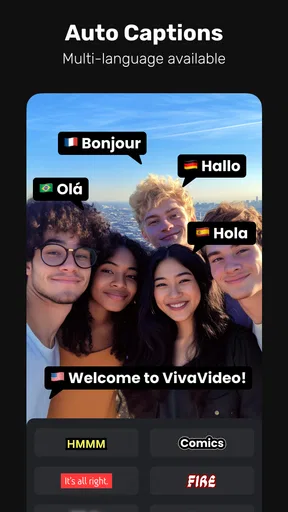
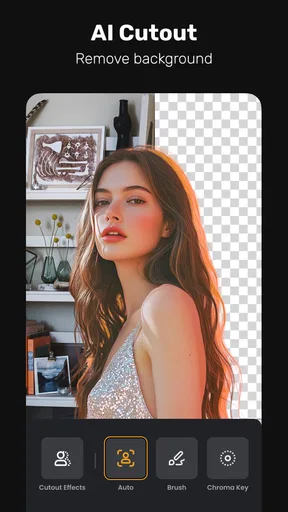
Our Review of VivaVideo - Video Cut & Editor
 Analysis by Appyee
If you are opening a video editor for the first time, the best way to judge it is not by how many effects it offers, but by whether you can finish one small project without getting lost. That is the test I would use with VivaVideo - Video Cut & Editor: start with a few clips, make one clear change, and see whether the result feels ready to share. It is a free video-editing app from QuVideo Inc. Video Editor & Video Maker App, with optional in-app purchases ranging from $0.99 to $99.99 per item.
What to expect from a phone-first editor
VivaVideo is aimed at people who want to shape footage on a phone rather than move every clip to desktop software. Its video-player-and-editor category can sound broad, but the practical appeal is creative editing: trimming moments, joining clips, adjusting their look, and adding finishing touches. It is rated for Everyone, and its current version is 9.32.3, with Android 7.0 listed as the minimum operating system.
The app has been around since 2013, and its reach is substantial: it has over 500 million installs, around 12 million ratings, and an average rating of 4.3. Those figures tell me it is a familiar option for casual creators, not that every person will find its workflow ideal. If you mainly need to remove the beginning and end of a clip, your phone’s built-in editor may be quicker. VivaVideo makes more sense when you want several clips to feel like one deliberate little story.
Make your first edit easy to finish
For a first session, I would choose a simple subject with a natural beginning and ending: a quick meal, a walk, or a few moments from a family visit. Pick only the clips you need, put them in a sensible order, and trim away the pauses before adding decoration. This gives you a finished baseline to compare against, and it keeps a first edit from turning into an hour of trying every effect.
One useful habit is to decide what the video is for before you start. A clip meant for friends can carry playful stickers and more obvious transitions; something you want to keep as a memory may look better with restrained effects and a short caption. Making that choice early helps avoid a common editing trap: adding options simply because they are there, then having to remove them to recover the moment’s original feel.
Choosing it over simpler or deeper tools
Compared with the basic editor built into a phone, VivaVideo gives you more room to combine clips and style the result. Compared with more involved editing software, it is better suited to quick, touch-based work than to projects where you need a highly controlled, repeatable production process. I would choose it for a short birthday montage or a casual social post, but not as my first pick for a complex piece that needs precise, layered editing across a large collection of footage.
That distinction matters if you are deciding whether to pay for anything. The app is free to try, while some purchases are available inside it. I would first complete a small project using the options already accessible to you; only consider a purchase if you repeatedly run into a specific limitation and know the paid item addresses it. A tempting effect is not the same as a necessary tool.
First Impressions and Features
When I first opened VivaVideo, I was struck by its user-friendly interface. It’s not every day you find a video editing app that doesn’t make you feel like you need a degree in film editing to use. The app's design is intuitive, with all the main features easily accessible from the home screen.
One of the standout features is the video editing capabilities. You can cut, trim, and merge clips with just a few taps. There are also plenty of transitions and effects to choose from, which are perfect for spicing up your videos. I particularly love the slow-motion and fast-motion effects—they’re super easy to apply and can completely change the vibe of your video.
For a newcomer, I’d treat that home screen as a starting point rather than a checklist. Begin with the main editing task, and leave optional creative choices until the clip order and length feel right. If you have a clear target—say, a compact recap rather than a full record of an event—it becomes easier to decide what to cut and when to stop polishing.
Music and Audio Options
What’s a great video without some killer tunes, right? VivaVideo offers a decent library of music and sound effects. You can also add your own tracks if you have particular songs in mind. The app allows you to sync the music with your video perfectly, which is a huge plus for me. No more awkward pauses or mismatched beats!
A practical audio tip is to listen through the whole edit once before exporting, not just the opening. Music that seems to fit the first few seconds can overpower a spoken moment later, or carry on after the visual point has ended. For a clip where someone is talking, I would keep the soundtrack secondary and check the transition between speech and music; for a visual montage, a steady track can help the separate shots feel connected.
Filters and Themes
Whether you’re going for vintage vibes or a modern aesthetic, the app has you covered with its extensive range of filters and themes. I often find myself trying different combinations to see what works best. The filters are not overly dramatic, which is nice—they enhance the video without overpowering it.
Trying a filter on one representative shot before applying a look across the entire project is a useful way to avoid surprises. Indoor light, outdoor shade, and bright daylight can react differently to the same treatment. I prefer to choose a look that keeps faces and important details readable, then use it consistently rather than making every scene compete for attention.
Text and Stickers
Adding text and stickers is a breeze. The app provides a variety of fonts and styles, which makes it easy to find something that matches the tone of your video. I’ve had fun playing around with the stickers for some of my more light-hearted clips. It’s a great way to add a bit of personality and humor.
Text is most useful when it answers a real question for the viewer: where the clip is, what is happening, or why a quick shot matters. Keep it brief and place it where it does not cover the main action. Stickers can work well for an informal greeting or joke, but I would use fewer of them in a keepsake video so the people and moment remain the focus.
Performance and Usability
Now, let's talk about performance. The app runs smoothly on my device, and I haven’t experienced any lag, which is a common issue with many other video editing apps out there. It also doesn’t drain the battery as much as I expected, which is a pleasant surprise.
Performance can still depend on the phone and on how much material you are asking it to handle, so I would save a longer edit as I go rather than relying on one final session. If an edit feels crowded or sluggish, trimming unused footage and closing out a project you no longer need can make the work more manageable. A short first project is also a sensible way to see how your own device handles the editor before committing to a larger one.
Here is a realistic first-day use: after a family visit, I might choose a handful of short moments, remove the stretches where nobody is doing anything, and arrange the remaining shots so the video has a beginning and a finish. I would add a restrained music bed, use a brief caption to identify the occasion, and watch the export once before sharing. That workflow gives me a useful result without turning a casual memory into a production project.
One point new users often wonder about is whether they need to pay before they can make anything worthwhile. I would start with the free editing experience and judge it by the exact job at hand; in-app purchases exist, but they do not make sense until you know what feature or item you actually need. Another likely question is whether the app is only for social posts. I find its quick tools useful for those, but the same trim-and-join workflow can also make a personal recap that stays on your phone.
Sharing your creations is straightforward. Once you finish editing, you can export your video in various resolutions, depending on where you plan to upload it. Whether it's Instagram, Facebook, or YouTube, VivaVideo makes it easy to share your videos directly from the app.
Before sharing, I would watch the exported version from start to finish. That small check can catch a caption that appears too briefly, a transition that feels abrupt, or audio that ends at an awkward point. If the same edit is meant for more than one destination, think about the framing and how much context a viewer will have; a video that makes sense to friends who know the story may need a little more explanation for a wider audience.
Final Thoughts
Overall, VivaVideo - Video Cut & Editor has become my go-to app for video editing on the go. It's packed with features that cater to both beginners and advanced users. The combination of ease-of-use, performance, and creative options makes it a solid choice for anyone looking to enhance their video content.
I would recommend it most to someone who wants to make a polished short video without learning a desktop-style editing system: a first-time editor, a parent assembling a quick family recap, or a casual creator who likes adding music and a little visual personality. I would steer a person toward a simpler built-in tool if they only need a basic trim, and toward a more specialized editor if they need exact control over a demanding, multi-part project. The right choice depends less on the number of effects and more on how much control the task genuinely needs.
If you're in the market for a reliable and feature-rich video editor, give VivaVideo a shot. It's perfect for bringing your video ideas to life without the hassle of complicated software. Happy editing!
How VivaVideo - Video Cut & Editor Compares
Full ComparisonCapCut suits beginners who want polished effects, KineMaster fits creators seeking layered, precise edits, and VivaVideo is a good match for quick, template-led videos.
| App | Developer | Rating | Price |
|---|---|---|---|
 CapCut - Video Editor | Bytedance Pte. Ltd. | 3.5 | Free |
 KineMaster - Video Editor | KineMaster, Video Editor Experts Group | 4.4 | Free |
 VivaVideo - Video Cut & EditorThis App | QuVideo Inc. Video Editor & Video Maker App | 4.3 | Free |
Verdict
Strengths of VivaVideo - Video Cut & Editor
- Intuitive interface for easy editing.
- Wide range of transitions and effects.
- Supports HD video exports.
- Numerous text and sticker options.
- Regular updates with new features.
Limitations of VivaVideo - Video Cut & Editor
- Contains in-app purchases.
- Watermark on free version.
- Limited music library.
- Ads in free version can be intrusive.
- Advanced features require subscription.
Similar Picks in This Category
View All
Google TV
Google LLC3.9

iTunes
Apple4.7

YouTube
Google LLC3.8

MX Player
Amazon Mobile LLC4.2

CapCut - Video Editor
Bytedance Pte. Ltd.3.5

PLAYit-All in One Video Player
PLAYIT TECHNOLOGY PTE. LTD.4.5
You May Also Like
View All

Frequently Asked Questions
What features does VivaVideo offer for video editing?
VivaVideo provides a comprehensive suite of editing tools, including trimming, merging, and adding music or voiceovers. Users can also apply various filters, effects, and text overlays. The app supports multi-track editing, allowing for more complex video projects. Its user-friendly interface is designed for both beginners and experienced editors.
Is VivaVideo free to use, or are there in-app purchases?
VivaVideo is free to download and use, but it offers in-app purchases for premium features. The free version includes basic editing tools, while the premium version provides advanced features like watermark removal, high-quality exports, and access to exclusive effects. Subscriptions are available on a monthly or yearly basis.
How does VivaVideo handle video export and sharing?
VivaVideo supports exports in various resolutions, including HD, and allows direct sharing to social media platforms like Instagram, Facebook, and YouTube. Users can choose the format and quality settings that best suit their needs, ensuring compatibility with different devices and platforms.
Does VivaVideo require an internet connection to function?
While VivaVideo can be used offline for editing, certain features require an internet connection. This includes downloading new effects, filters, and updates. Additionally, sharing videos directly to social media platforms or accessing cloud storage options will need an active internet connection.
Is VivaVideo suitable for professional video editing?
VivaVideo is primarily geared towards casual and semi-professional use, offering a range of tools that are easy to use. While it provides many features useful for creating polished videos, professionals might find it lacks some advanced capabilities found in dedicated desktop video editing software.
